Meta PVs
PVs that are displayed in the snapshot list as metadata are called Meta PVs. They can help filter and identify useful snapshots from the list.
For example, the 600 Energy column below shows values for a meta PV.
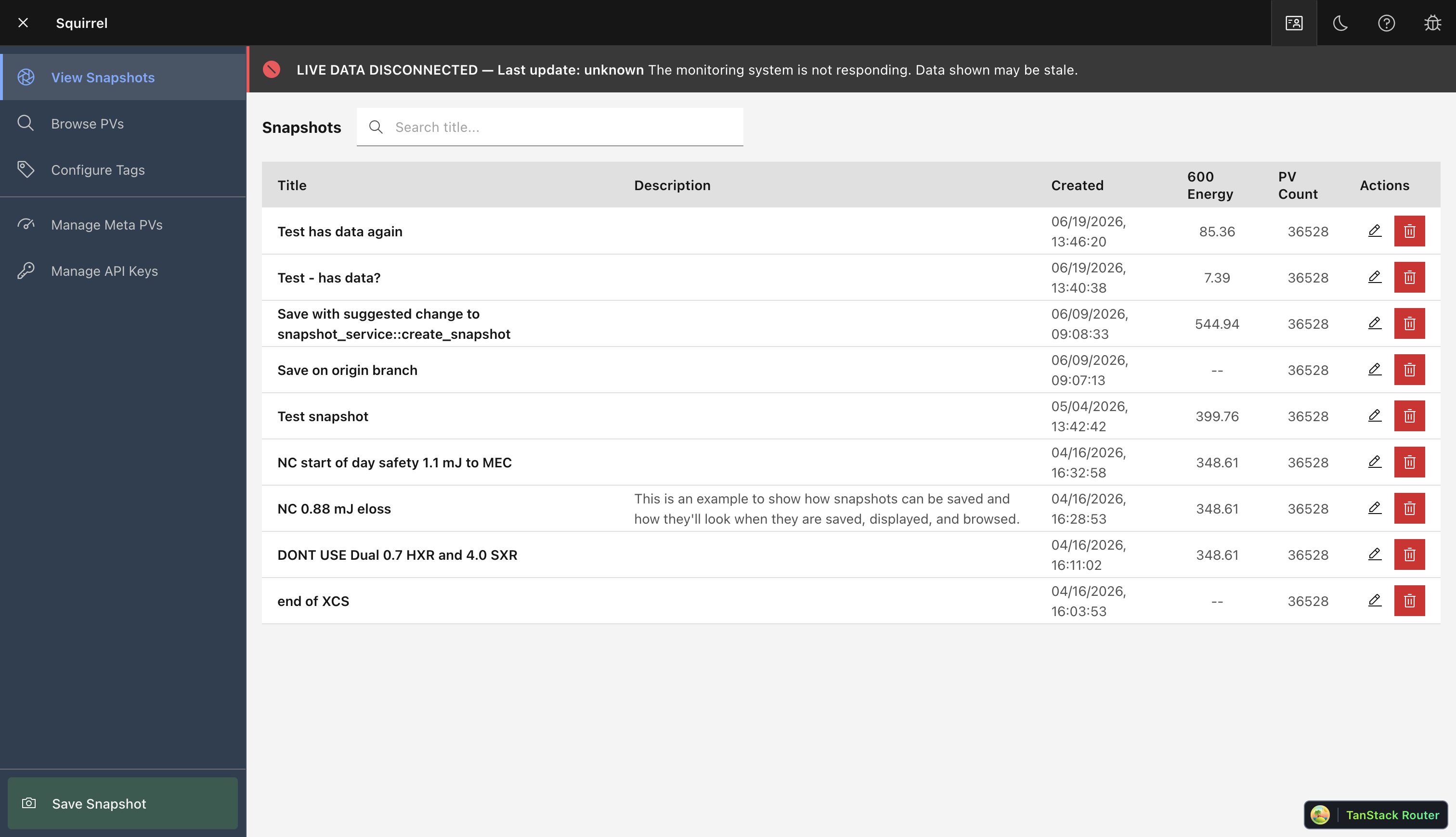
Each active meta PV adds a column to the snapshot list, showing the value it had when each snapshot was taken.
Admin Required
Managing meta PVs requires admin mode. The Manage Meta PVs item appears in the sidebar only when admin mode is on.
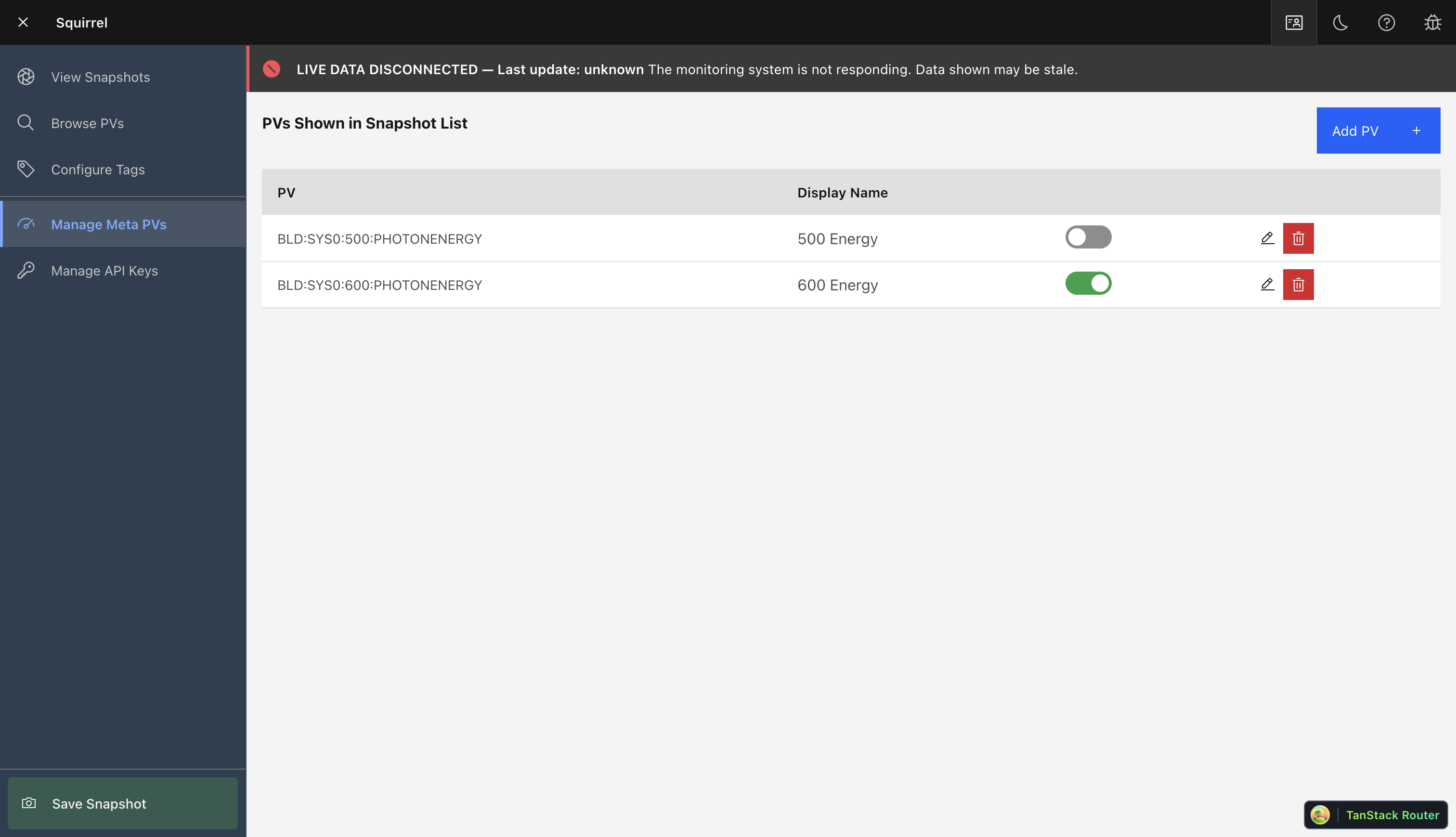
Click Manage Meta PVs to open the PVs Shown in Snapshot List page:
Adding Meta PVs
- Click Add PV.
- In Add PV to Snapshot List, enter the PV's address in PV.
- Optionally, enter a Display Name (up to 32 characters). It's shown as the column header in the snapshot list instead of the full address.
- Click Add.
The PV must already be tracked in Squirrel, and it can be found by its setpoint or readback address. If no tracked PV has that address, the dialog says PV not found. A PV can be a meta PV only once.
Removing Meta PVs
Click the delete icon (the trash can) next to the meta PV. It is removed straight away, with no confirmation.
This only stops showing the PV in the snapshot list: the PV is still tracked and stays in snapshots. To delete the PV itself, remove it as a meta PV first, then delete it from the PV Browser; a PV that is still a meta PV can't be deleted.
(De)activating Meta PVs
To activate or deactivate a meta PV, click its toggle. The PV is active when the toggle is on (to the right, and colored), and inactive when it's off (to the left, and grey).
An inactive meta PV doesn't appear in the snapshot list, as if it had been removed, but it keeps its display name and can be switched back on at any time.
Editing Meta PVs
To change a meta PV's display name, click the edit icon (the pencil) next to it, enter the new name, and click Confirm.
A meta PV's address can't be changed. Add the new PV as a separate meta PV, and remove the old one.